FlowDino Documentation
Discover how to use all FlowDino features
📚 Menu Documentation
Publishing / Renewal
Documentation - Publishing / Renewal
Publish your articles in a few clicks on all platforms
Presentation
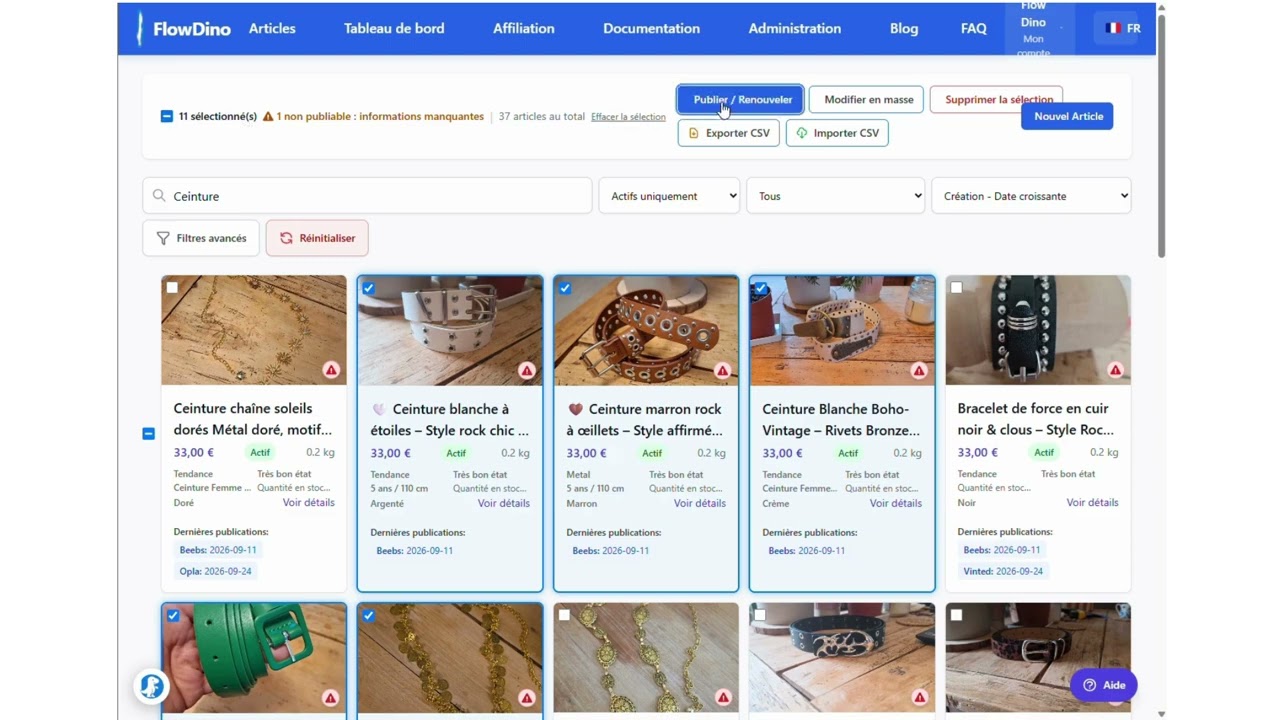
The Publishing / Renewal tab is the heart of the FlowDino extension. It allows you to automatically publish your selected articles on different online sales platforms with precise control over publishing parameters.
Video demonstration
Discover in video how to use the publication feature:
Prerequisites
- FlowDino extension installed and activated
- Valid FlowDino account with sufficient credits
- Articles selected in the "Article Choice" tab
- Active connection to target platforms
Publishing / Renewal Interface
The publishing interface is organized into several main zones for intuitive use.
Main zones
Discover the different zones of the publishing interface:
📤 Publishing Zone
Displays selected articles ready to be published with their main information.
- Main image preview
- Article title
- Base price
⚙️ Publishing Settings
Configure delays between publications and margin to optimize your sales.
- Minimum delay between publications (20 seconds minimum)
- Margin to compensate platform fees

📊 Real-time Tracking
Visualize publishing progress with progress bars and detailed statuses.
- Global progress bar
- Individual status per article
- Error detection and display

Usage
Follow this step-by-step guide to publish your articles effectively.
Step-by-step guide
- Select your articles in the "Article Choice" tab
- Access the "Publishing" tab
- Configure publishing settings (delay, margin)
- Check connection to target platforms
- Click "Publish" to start the process
- Monitor progress in real-time
Best practices
⏰ Optimal timing
- Publish during peak hours (6pm-9pm on weekdays)
- Favor weekends for certain categories
- Space your publications to avoid limitations
💰 Pricing strategy
- Adjust margin according to platform fees
- Stay competitive compared to the market
- Test different margins to optimize
📸 Content quality
- Use quality and well-lit images
- Write detailed and attractive descriptions
- Optimize with relevant keywords
Troubleshooting
🚨 Common errors
Connection error
Problem: "Not connected to [Platform]"
Solution: Connect manually to the platform, then restart publishing.
Image upload failure
Problem: "Error during image upload"
Solution: Check image size and format (JPG/PNG, max 10MB).
Publishing limit reached
Problem: "Publishing quota exceeded"
Solution: Wait for your subscription renewal or upgrade to a higher plan.
Captcha or phone confirmation
Problem: Vinted requests a captcha or phone number confirmation
Solution:
- Complete the captcha or confirm your phone number
- Manually validate the article creation
- Restart publishing via the extension for remaining articles
This situation is normal and part of Vinted's security measures.
💡 Optimization tips
To maximize your chances of success:
- Publish during peak hours (6pm-9pm on weekdays)
- Use quality and well-lit images
- Write detailed and attractive descriptions
- Regularly check your platform connections
- Space your publications to avoid limitations