FlowDino Documentation
Discover how to use all FlowDino features
📚 Menu Documentation
PrestaShop Module
FlowDino Module Documentation
Complete guide to optimize your PrestaShop store with FlowDino
Presentation
FlowDino has an innovative PrestaShop module that revolutionizes the management of your products. By enabling seamless synchronization between your PrestaShop store and the FlowDino platform, you can now centralize the management of your catalog and distribute your products across multiple marketplaces in just a few clicks. Simplify your workflow and increase your visibility with our all-in-one solution. Orders placed on marketplaces are then retrieved in your PrestaShop store.
Video demonstration
Discover how to configure and use the PrestaShop integration with FlowDino:

Prerequisites
- PrestaShop 1.7 or higher - For optimal compatibility
- PHP 7.2 or higher - For maximum performance
- An active FlowDino account - Create one for free in a few minutes
- Administrator rights on your PrestaShop store - For hassle-free installation
🏗️ Module structure
The FlowDino module has been designed with an intuitive and ergonomic interface. It consists of several main tabs allowing complete configuration of your product synchronization.
The Main Tabs
A clear and organized interface for quick adoption
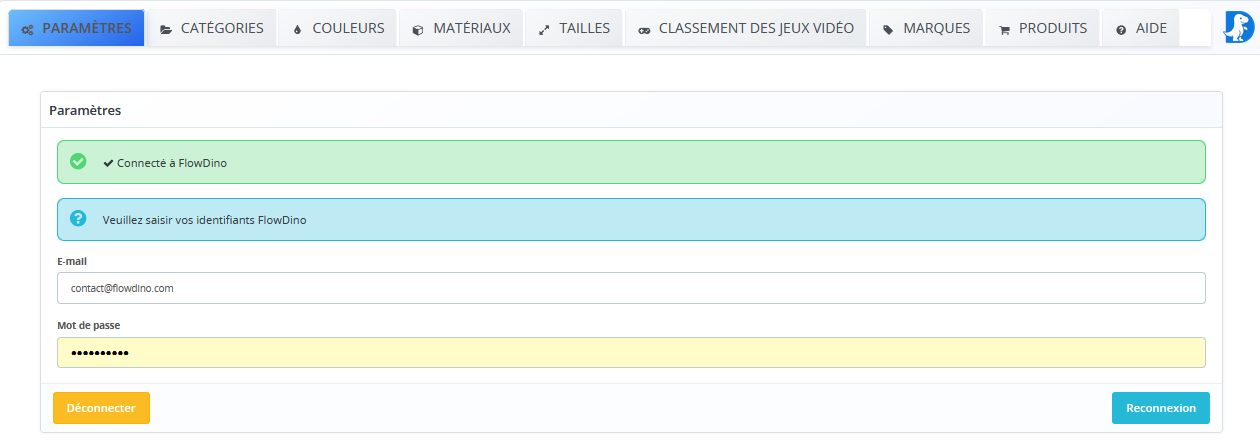
1. Parameters
Connection configuration:
- Enter your FlowDino API key
- Automatic connection test
- Synchronization options configuration
- Activity log management
2. Categories
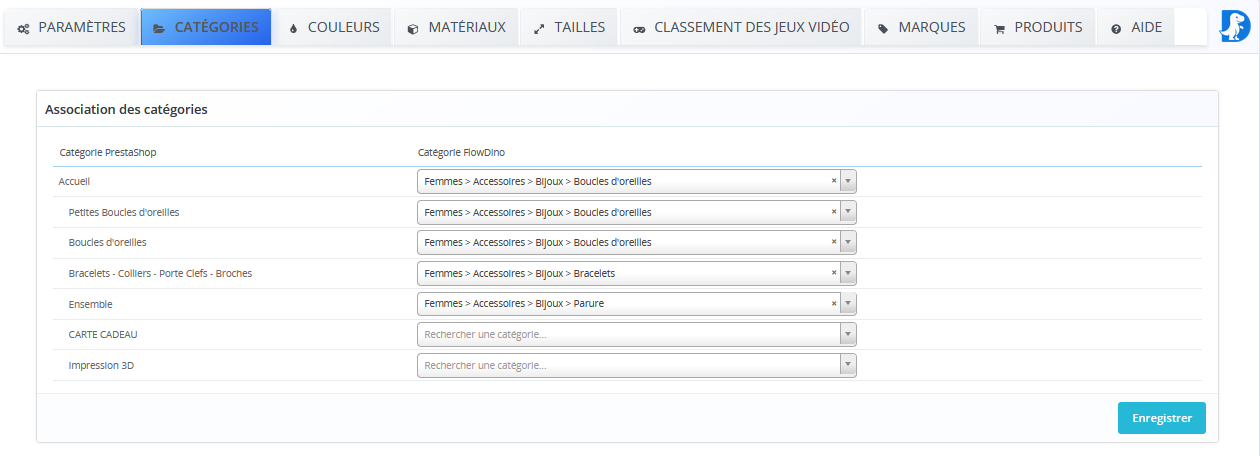
Category mapping:
- Association of PrestaShop categories with FlowDino
- Definition of a default category
- Hierarchical category management
- Mapping preview
3. Attributes Configuration
Data source selection:
Data type selection
- Dropdown menu to choose between Attribute or Feature
- Example for Color: Type "Attribute" → Attribute group "Color"
- Specific configuration according to your PrestaShop store
- Individual selection for each data type
It depends on your PrestaShop configuration

4. Colors
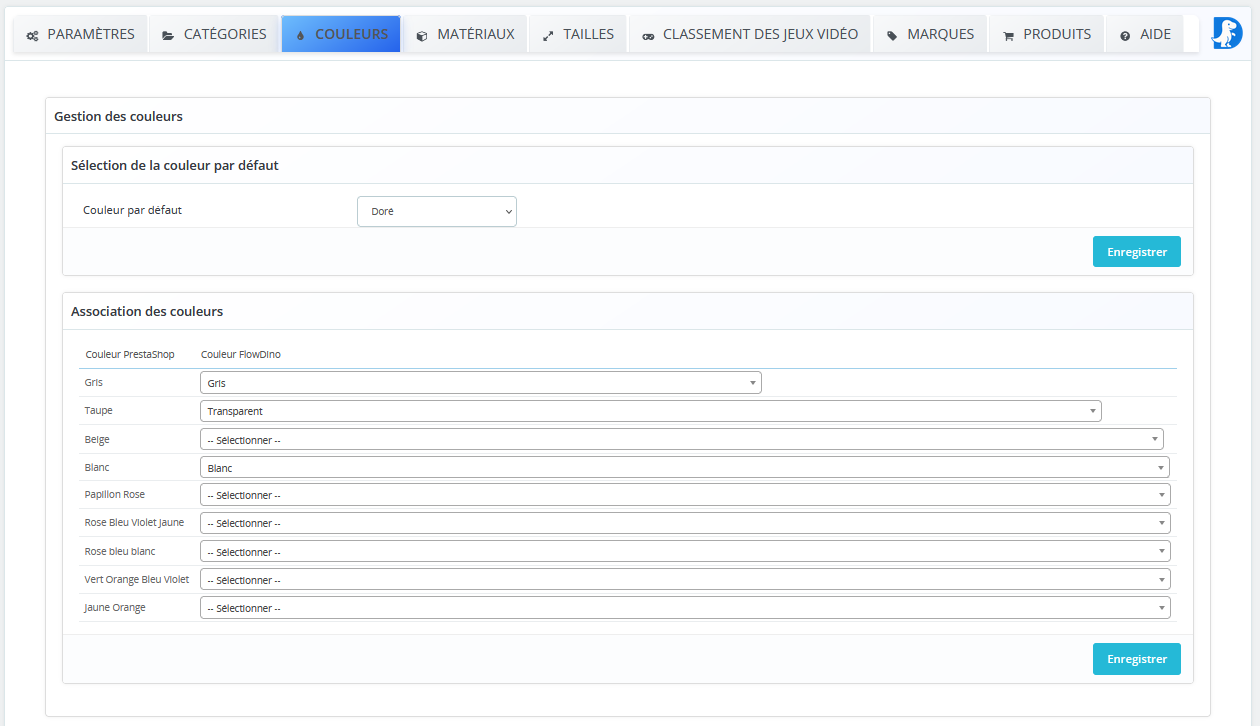
Color configuration:
- Definition of a default color
- Association of PrestaShop colors with FlowDino
- Color attribute synchronization management
- Correspondence preview
5. Materials
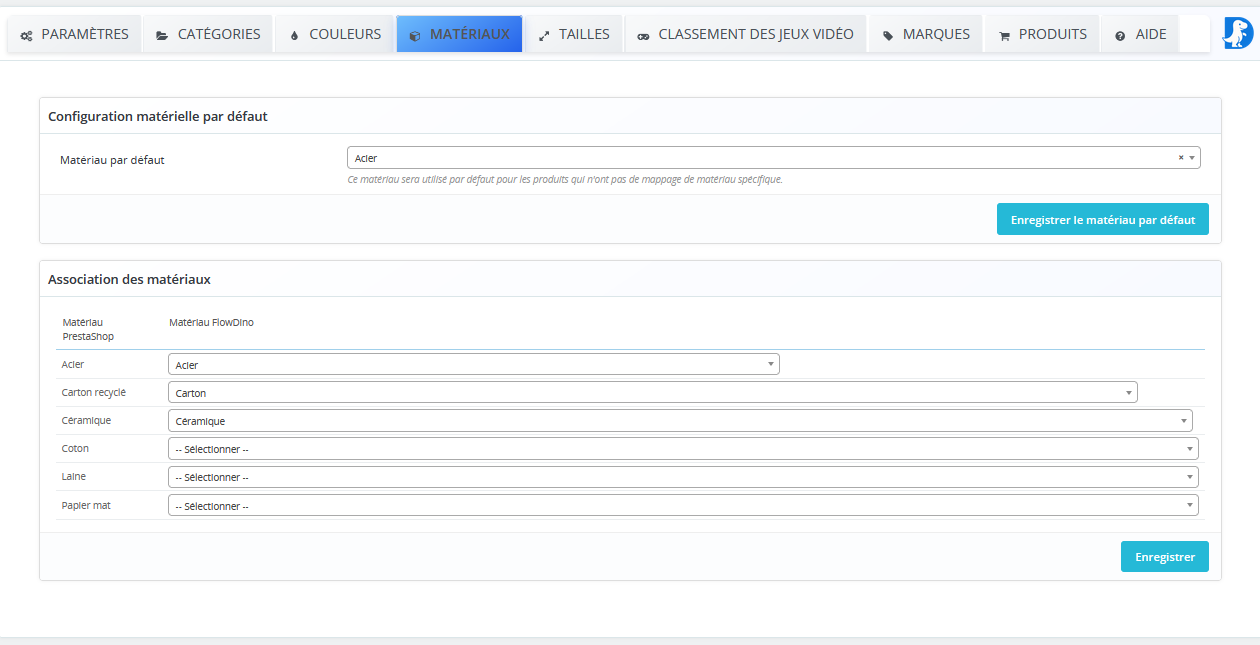
Material management:
- Association of PrestaShop material characteristics
- Mapping with FlowDino materials
- Custom material management
- Automatic synchronization
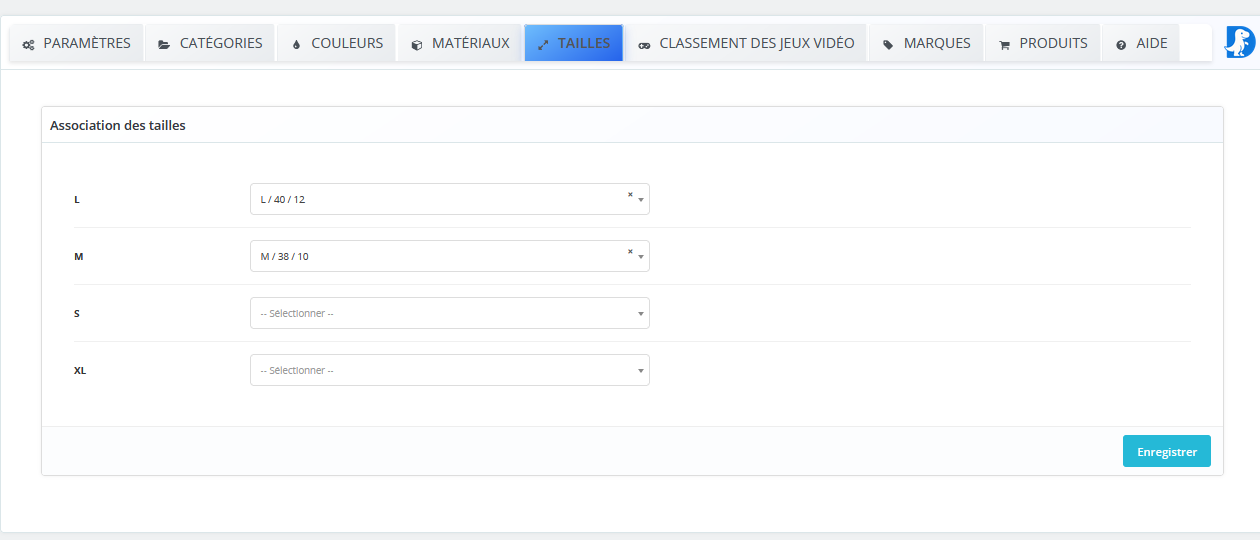
6. Sizes
Size configuration:
- Association of PrestaShop size attributes
- Mapping with standardized FlowDino sizes
- Product variant management
- Size guide configuration
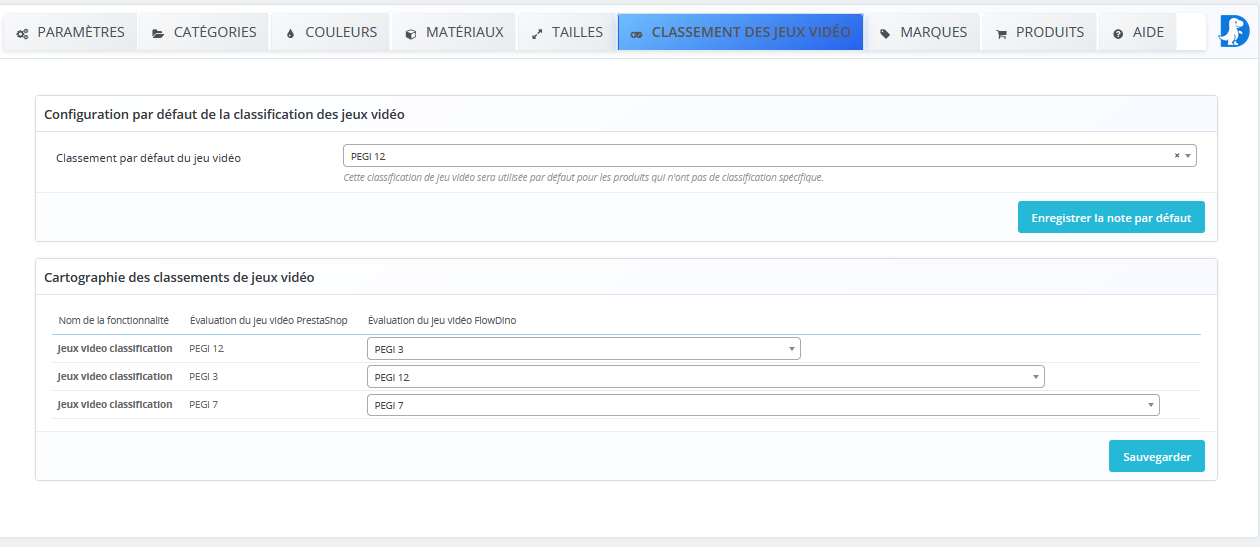
7. Video Game Ratings
Video game rating management:
- Configuration of a default rating
- Association of PrestaShop ratings with FlowDino ratings
- Management of PEGI and ESRB classifications
- Integrated rating management interface
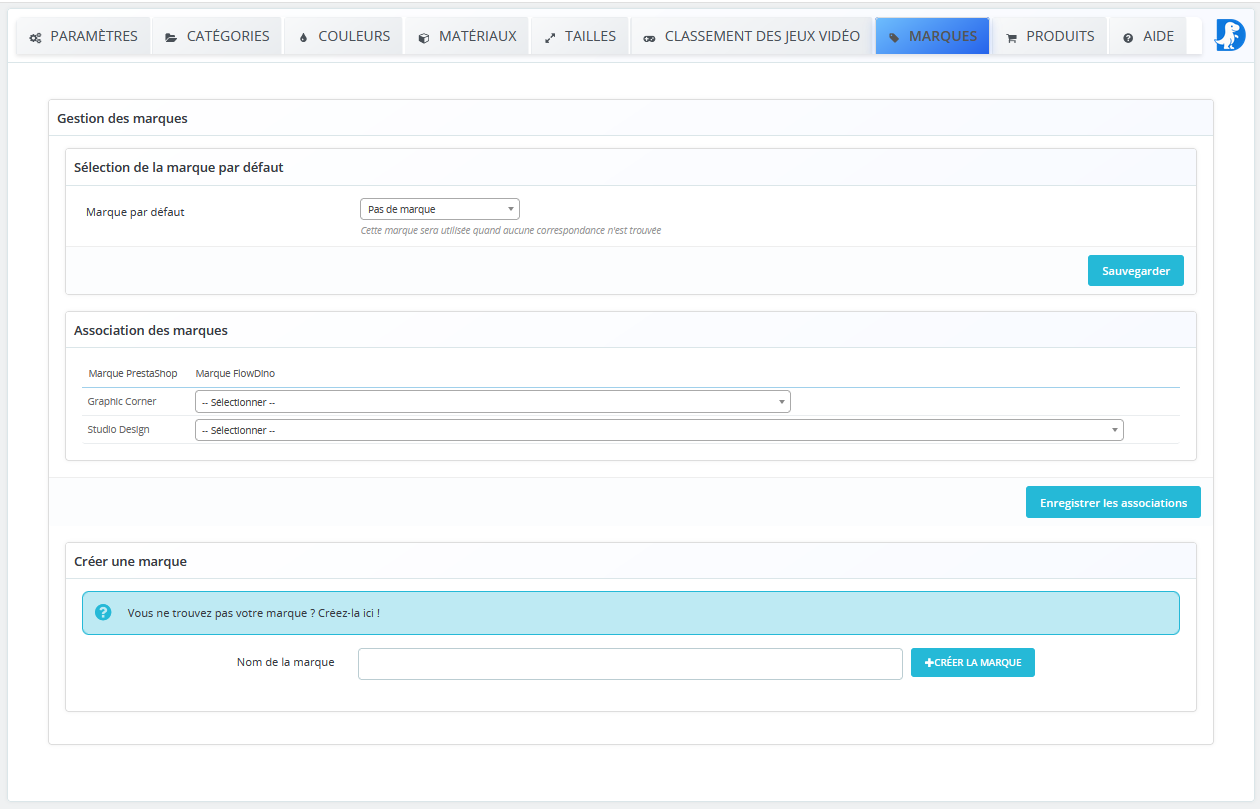
8. Brands
Brand management:
- Configuration of a default brand
- Association of PrestaShop brands with FlowDino brands
- Creation of new brands
- Integrated brand management interface
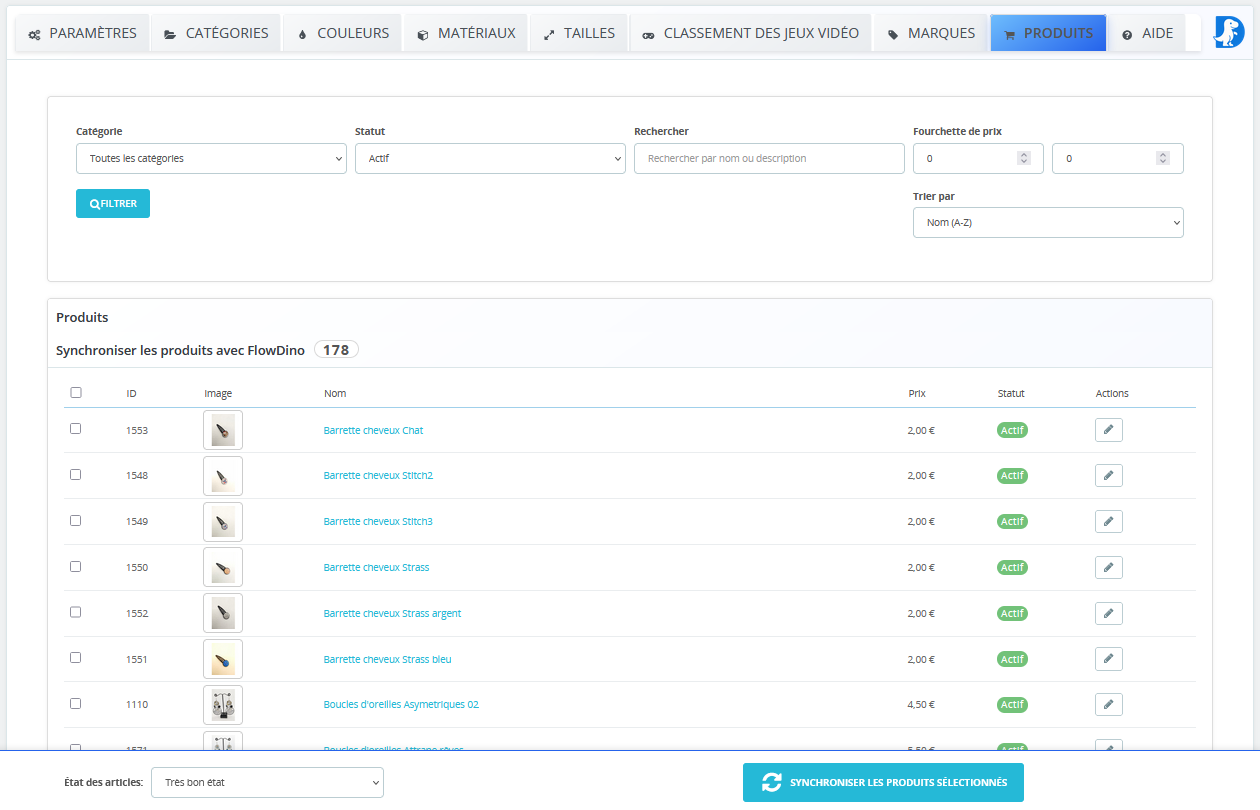
9. Products
Synchronization control center:
- Filter by category
- Filter by status
- Filter by price range
- Custom filters
- Selection of products to synchronize
- Batch synchronization
- Synchronization status tracking
- Detailed activity logs
Usage
Practical usage guide for the FlowDino module to maximize its efficiency.
First configuration
- Connect to your FlowDino account from the Parameters tab
- Configure category mapping according to your needs
- Set up colors, materials and sizes
- Select products to synchronize in the Products tab
Product synchronization
- Access the Products tab of the module
- Use filters to select desired products
- Click on "Synchronize" to start the process
- Follow progress in synchronization logs
Product deactivation
To deactivate synchronized products: Access the Products tab, select products to deactivate, and click 'Deactivate'. Products will be automatically removed from sales platforms.