FlowDino Documentation
Discover how to use all FlowDino features
📚 Menu Documentation
💰 My Sales
Sales Dashboard
Track and manage all your sales in one place
Overview
The sales dashboard allows you to centralize and track all your transactions across different sales platforms. You can view your sales history, manage current orders, and analyze your commercial performance.
📍 Access My Sales Page: Click here to access your sales dashboard
Video Demonstration
Discover in video how to use the sales dashboard to track and manage your transactions.
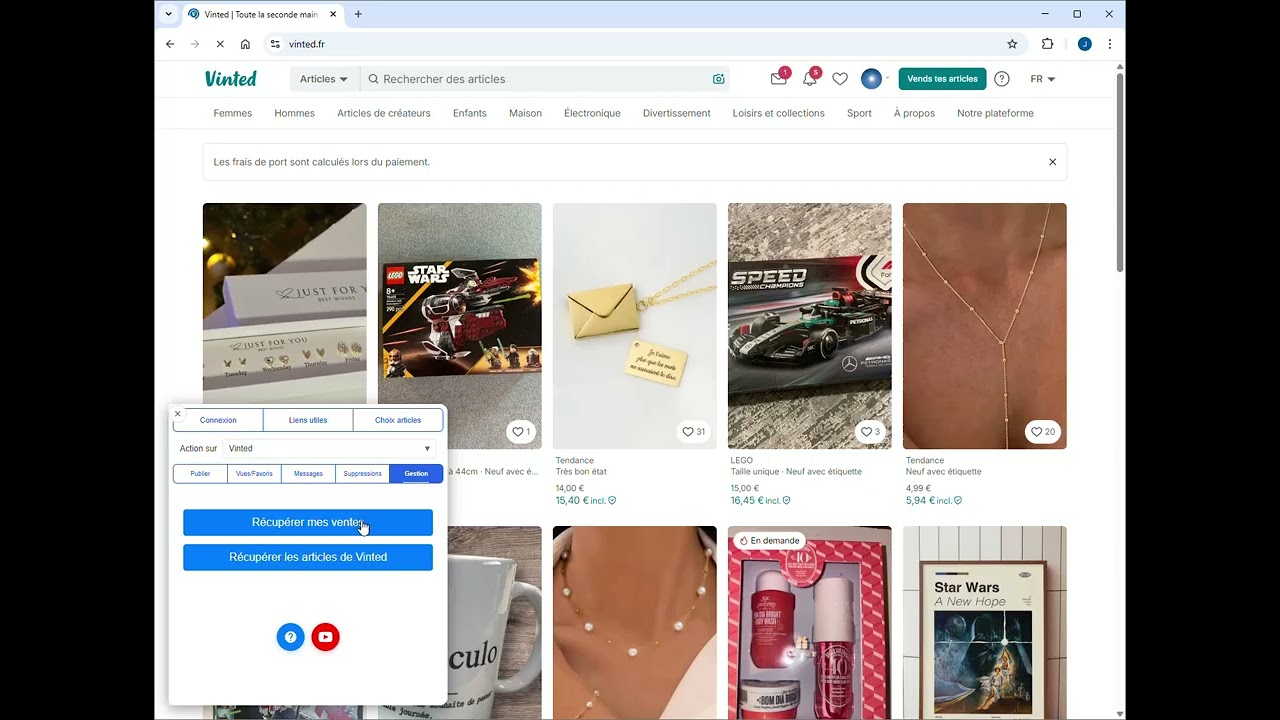
Main Features
📈 Real-time Statistics
Visualize your sales performance in real-time with graphs and key indicators (number of sales, revenue, best-selling items).
📋 Sales List
View the complete history of your sales with all details: date, sold item, price, platform, order status.
🔍 Advanced Filters
Filter your sales by date, platform, status, amount, or item to quickly find the information you need.
💰 Revenue Tracking
Track your revenue by period (day, week, month) and by platform to optimize your sales strategy.
🏷️ Delivery Labels
Print your shipping labels directly from the dashboard: multiple selection, A4 format (1 to 6 per page) or thermal mode.
Displayed Information
For each sale, you can view:
- Date and time: Exact moment of the transaction
- Item: Name, description and photo of the sold product
- Sale price: Transaction amount
- Platform: Website where the sale was made
- Buyer: Customer information (according to available data)
- Status: Order status (pending, shipped, delivered, cancelled)
- Fees: Platform commission and associated fees
- Net profit: Amount after fee deduction
Automatic Stock Management
Retrieving sales allows intelligent management of your inventory:
- 📦 Automatic stock decrement: When a sale is retrieved, the stock of the sold item is automatically decremented in FlowDino.
- 🔴 Automatic item deactivation: When an item's stock reaches 0, the item is automatically deactivated to avoid selling an unavailable product.
- ✅ Real-time synchronization: Your stocks always remain up to date on all your connected sales platforms. You just need to launch deletion using the extension's Deletion tab.
- 🔄 Manual reactivation possible: You can of course reactivate an item and add stock whenever you want.
⚠️ Important: Make sure to retrieve your sales regularly to keep your stocks up to date and avoid selling out-of-stock items.
Delivery Labels
The sales dashboard includes a delivery label printing system to facilitate the shipment of your orders.
- 🏷️ Quick label access: Each order with a shipping label displays a print icon directly in the list.
- ☑️ Multiple selection: Check multiple orders to print their labels all at once.
- 📄 A4 format: Choose to print 1 to 6 labels per A4 page.
- 🧾 Thermal mode: Enable thermal mode to print 1 label per page, ideal for 100×150 mm thermal printers.
- 🖨️ Direct printing: Labels open in a new window ready for printing.
How to print your delivery labels?
- Go to your sales dashboard at My Sales
- Check the orders whose labels you want to print (only orders with a label are available)
- Click the Print labels button in the action bar
- Choose the number of labels per page (1 to 6) or enable thermal mode
- A print window opens with your labels ready to print
ℹ️ Labels are retrieved directly from sales platforms. Make sure your orders have a shipping label generated by the platform.
Multi-Platform Synchronization
The dashboard automatically centralizes sales from all your configured platforms:
- ✅ Vinted
- ✅ Leboncoin
- ✅ eBay
- ✅ Other connected platforms
Data is synchronized when you want to ensure you always have an updated view of your commercial activity.
Usage Tips
- Check regularly: Review your dashboard daily to not miss any orders and respond quickly to buyers.
- Use filters: To quickly find a specific sale, use the available search and sorting filters.
- Analyze your data: Use statistics to identify which types of items sell best and when.
- Keep statuses up to date: Update your order statuses for better management and customer satisfaction.